

Hotspot 2017: Use emojis to add color to your Connectify Hotspot ?!
Since their creation in the late 1990s in Japan, emojis have taken the world by storm, and now in Hotspot 2017 you can use them customize your hotspots name! ?
Just choose your favorite emoji(s) from the picker when setting up your hotspot and clients will be able to see your fancy hotspot name in their network lists when connecting! ???
But thats not all, the hotspot name (SSID) also has full unicode support which means you can use all kinds of special (or language specific) characters – “ʇodsʇoɥ-ʎɟıʇɔǝuuoɔ”
Share your best creations with us on Twitter @connectify!
Share this Post
Setup · about two minutes
Get Connectify Hotspot running on your Windows PC
Three steps, no command prompt, no netsh commands to remember.
-
Install and open Connectify Hotspot
Run the installer and let the install finish. Connectify Hotspot opens on its own.

-
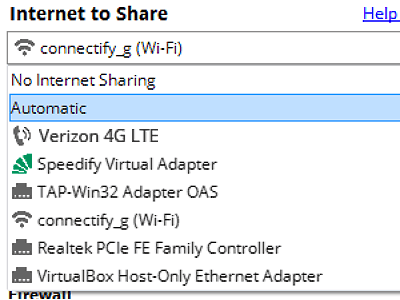
Pick what you are sharing
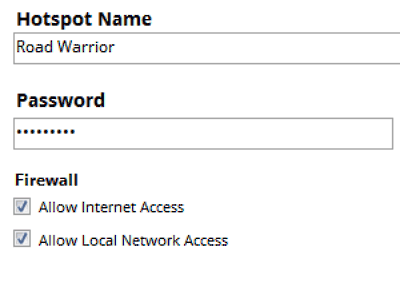
Choose the connection your Windows PC is already using, then set a hotspot name and password.
-
Start Hotspot
Your phone, tablet or console now sees the network name you just typed. Connect to that network like any other Wi-Fi.
Available for Windows 10 and 11
Available for Windows 10 and 11